The monitor is the object you look at longer than anything else in your working day: longer than your phone, longer than the window, often longer than the people you work with. And yet it is almost always the purchase made with the least thought — check the price, check the inches, buy. You know the result: text that reads badly, reflections that force you to shift your chair, a thicket of cables under the desk and a neck that makes itself heard by evening. Choosing well once costs half an hour of thinking and saves you years of small daily irritations.
This guide doesn't chase the highest specifications or the model of the moment. It lines up the criteria that actually change the experience of eight hours in front of a screen, in the order worth tackling them: first where you put it, then what you see on it, then how you connect it. At the end there is a real selection from the catalogue, each model for a different use.
1. Start with distance, not inches
The diagonal on its own says nothing. A 27-inch screen forty centimetres from your eyes is a wall that makes you turn your head to read the corners; the same 27 inches at eighty centimetres is comfortable and airy. The number that matters isn't the diagonal: it's the ratio between diagonal and viewing distance, and the viewing distance is decided by your desk, not by the shop.
Measure the depth of your desktop before looking at any spec sheet. On a sixty-centimetre desk, with the keyboard in front, your eyes end up fifty to sixty centimetres from the screen: that is the natural territory of 24 inches, perhaps 27 if the monitor can sit further back on an arm. On a seventy- or eighty-centimetre surface, 27 becomes the natural choice and 32 stops being excessive. Below fifty centimetres of distance, anything above 24 inches will have you working with your head in constant motion.
The outstretched-arm rule
Sit the way you actually work and stretch out your arm: your fingertips should just brush the screen. If you touch it with your whole palm the monitor is too close; if you can't reach it, it's too far for text work. It's a crude rule and it works better than any table, because it accounts for your height, your chair and the way you sit.
The second check is height. The top edge of the screen should be at eye level or slightly below: the resting gaze drifts a little downwards, and a monitor set too high is the most frequent cause of tension between neck and shoulders at the end of the day. If the supplied stand doesn't rise far enough, the problem isn't your neck: it's the stand.
2. Resolution and density: the number almost nobody checks
Full HD, QHD and 4K are labels that only become useful when crossed with the diagonal. The real parameter is pixel density — how many pixels fit into an inch of screen. Below 90 pixels per inch text starts showing jagged edges; around 110 it is crisp and restful; above 140 you enter the territory where the operating system has to scale the interface so the characters aren't tiny.
In practice: a 24-inch Full HD sits around 92 pixels per inch and is the acceptable minimum for working with text all day. A 24-inch QHD reaches roughly 122 and is the most restful combination there is for documents and code. A 27-inch Full HD drops below 82: the classic purchase that looks like a bargain and disappoints by early afternoon. A 27-inch QHD returns to 109 and is, not by chance, the most common office format.
The combinations that really work
Three pairings almost never go wrong. Twenty-four inches in QHD for anyone working on text, spreadsheets and code at close range. Twenty-seven inches in QHD for anyone who wants more surface without changing desk. Twenty-seven or thirty-two inches in 4K for anyone working on images, video or technical drawing who needs to see detail at real size.
One note on aspect ratio: 16:10 is coming back, and for office work it's a small gift. Those extra hundred-and-twenty pixels of height over 16:9 are worth three or four more lines of document per screen, which across a day of writing or reviewing become dozens of scrolls saved.
3. The panel: IPS, VA, OLED and what changes on the desk
Panel technology determines how you see colour when you're not perfectly centred, how deep the black is and how the screen behaves as the room light changes through the day. This isn't an enthusiast's concern: it's what decides whether the document on the left and the one on the right have the same white.
IPS is the safe choice for work: stable colour even viewed from the side, uniform whites, no surprises. It pays with a less deep black, which in a lit room you simply don't notice. VA offers better contrast and fuller blacks, excellent for those who also watch films and work in darker rooms, though it can show slight lag on dark transitions. OLED takes contrast to a level the others don't reach, with real blacks and dense colour: the choice for people working on images or wanting the best, provided you move static content around and use the anti-retention protections recent models build in.
Refresh rate and response time: when they actually matter
For work, 60 Hz is enough. That said, a 100 or 120 Hz panel makes text scrolling visibly smoother and, for some people, less tiring: if the price difference is modest, it's a real improvement outside gaming too. Above 144 Hz you're in territory that serves almost only competitive gaming.
Quoted response times are the most polluted figure on any spec sheet, because each manufacturer measures them as it prefers. For office use they are irrelevant: any monitor on sale today is fast enough to move a window. Don't pay for that number if your work is made of text.
4. Light, finish and reflections: the chapter almost everyone skips
Brightness is measured in candelas per square metre, usually written as nits. Three hundred nits is enough for a normal room; two hundred and fifty is fine in a controlled environment; below that threshold, in a bright room, you'll find yourself closing the curtains. Anyone working in front of a large window, or in an office with glass walls, should treat four hundred nits as the starting point.
But the position of the light matters more than its quantity. The rule is simple and almost always ignored: the monitor goes perpendicular to the window, never facing it and never with its back to it. Facing, the window reflects on the screen; with its back to it, the window forces you to raise brightness beyond comfort. Perpendicular, daylight lights the desk without ever entering your field of view.
Matte or glossy: it depends on the window
A matte anti-glare finish diffuses light and keeps text readable even with a light source behind you: the right choice for ninety per cent of desks. A glossy finish gives brighter colours and deeper blacks, but turns the screen into a mirror whenever something pale is behind you. If your room has controllable light and you work on images, glossy makes sense; otherwise matte wins without argument.
One last comfort detail: colour temperature adjustment. Shifting to warmer tones in the evening isn't a fashion, it's simply aligning the screen with the light in the room. Almost every monitor has a dedicated profile in its menu: it's worth finding on day one rather than discovering after two years.
5. Ergonomics: the stand is worth as much as the screen
An excellent panel on a stand that doesn't rise is a mediocre panel. Height adjustment is the single most important feature on the whole spec sheet, because it sets the position of your neck for thousands of hours. Tilt comes immediately after, letting you compensate for the difference between your line of sight and the plane of the screen.
Rotating to portrait, called pivot, looks like a gimmick until you work on long documents, web pages or code: a vertical screen shows twice the lines and changes the way you read. If you have two monitors, the classic combination is one landscape for the main work and one portrait for documents and messages.
VESA: the acronym that saves you
Always check the monitor has a VESA mount, typically 100 x 100 millimetres. It's the standard hole pattern on the back that lets you fit it to an arm or a wall bracket. Even if the stand is enough today, that mount is your insurance: the day the desk gets crowded, or you want back the twenty centimetres of depth the base occupies, an arm solves it in ten minutes.
The arm, incidentally, is the accessory that most changes how a workspace feels. It frees the surface, lets you push the screen back when working on paper and pull it closer when reading, and makes trivial the height adjustment that cheap stands grant only grudgingly.
6. Connections: one cable, if you can
This is where the tidiness of your desk is decided. A monitor with power-delivering USB-C works as a dock: a single cable carries video, network, the peripherals plugged into the monitor's hub and the laptop's charge. The value isn't technical, it's daily — you arrive, plug one cable, work; you leave, unplug one cable, go.
Check the power delivered, because that's where models separate. Sixty watts is enough for a light laptop; a work laptop with a large screen asks ninety or a hundred to charge while you use it. If the monitor delivers less than you need, the laptop charges slowly or, under load, discharges anyway: the convenience of the single cable evaporates.
The USB-C traps
Not every USB-C port carries video. It needs DisplayPort alternate mode support, and this must be checked on both the monitor and the computer: it's the most common disappointment for people who buy thinking they've solved the problem. In the same way, the Ethernet port built into some models is a concrete convenience for anyone in video calls who doesn't trust the flat's Wi-Fi.
If your computer is a desktop instead, DisplayPort remains preferable to HDMI for work: it handles high-resolution, high-refresh combinations better and doesn't carry the version ambiguities that plague HDMI. Always check which cables are in the box: it's an item many manufacturers treat casually.
7. Three desks, three different choices
Criteria hold in the abstract; desks don't. It's worth looking at three concrete situations, because one probably resembles yours.
The fixed setup at home
A seventy-centimetre desktop, a work laptop, meetings and documents. The balance point here is a 24- or 27-inch QHD with USB-C, height adjustable. Pixel density is right, the connection is a single cable, and the laptop can stay closed to one side or open as a second screen. If you spend many hours there, a VESA arm is the second purchase to put on the list.
The second setup that travels
Anyone alternating home, office and trips doesn't need the biggest monitor but the one that fits in the bag. A 15- or 16-inch portable panel powered over USB-C doubles your working surface in a hotel, a coworking space or at a client's, and weighs under a kilo. It doesn't replace the fixed screen: it stands beside it on the days when the alternative would be working on the laptop alone.
The shared space
A station used by several people, or a desk that changes function through the day, asks for simplicity and sturdiness rather than high specifications. A matte panel with good height adjustment, clear controls and standard connections stops everyone having to reset everything. And if the screen also serves for quick consultation or for the public, a touch model removes the keyboard step.
8. The mistakes that cost most
The first is buying the 27-inch in Full HD because it's cheap: the surface is large, the sharpness is that of a monitor from ten years ago, and the text tires you. Better a 24-inch QHD at the same price.
The second is skipping height adjustment to save fifty francs, then spending thirty on books stacked under the base. The third is buying two identical monitors when one well-adjusted station would be more comfortable: two screens help only if you genuinely use both, otherwise they add visual noise and neck movement.
The fourth is forgetting the depth of the base. A wide stand can eat twenty-five centimetres of desk, and on a shallow surface that is exactly the keyboard's space. The fifth, finally, is choosing the monitor before the chair: if the starting posture is wrong, no screen corrects it.
9. Care, lifespan and seasonality
A monitor lasts longer than any other part of your setup: ten years is not an exception. So it's worth treating it like furniture, not like an accessory. Clean it with the screen off, with a microfibre cloth barely dampened with water or a dedicated product — never with alcohol or glass cleaner on anti-glare coated panels: alcohol clouds that layer irreversibly.
Avoid pressing on the surface, don't rest objects against the panel and, if you have an OLED, leave the automatic compensation functions active. A banal but effective detail: move static windows around periodically and hide always-visible bars when you're not using them.
On seasonality, two practical observations. October to January is the period with the most promotions on office monitors, while professional models typically refresh in spring. And as the days shorten the room light changes: if you bought the screen in June and set brightness against full sun, by November you'll have a monitor that's too bright. Redoing that adjustment twice a year costs a minute and you feel it.
10. Quick questions
One big monitor or two smaller ones? Two screens help those comparing content all day; a single wide screen, or an ultrawide, is tidier and reduces neck movement. If you must choose, start with one done well.
Is 4K really needed for work? For images, video and technical drawing, yes. For text and spreadsheets, QHD delivers nearly all the benefit at lower cost and with less load on the computer.
Is low blue light mode useful? It's a colour-temperature adjustment, pleasant in the evening. What matters far more is screen brightness relative to the room, and the number of breaks you allow yourself.
Can I use a television as a monitor? Technically yes, practically almost never: low pixel density at close range, image processing that adds lag and no height adjustment.
How bright should it be? As bright as the room. The practical rule: a white sheet of paper on the desk and the white of the screen should look similar.
The picks
A few real products from the Monitor category to start from, each for a different desk:
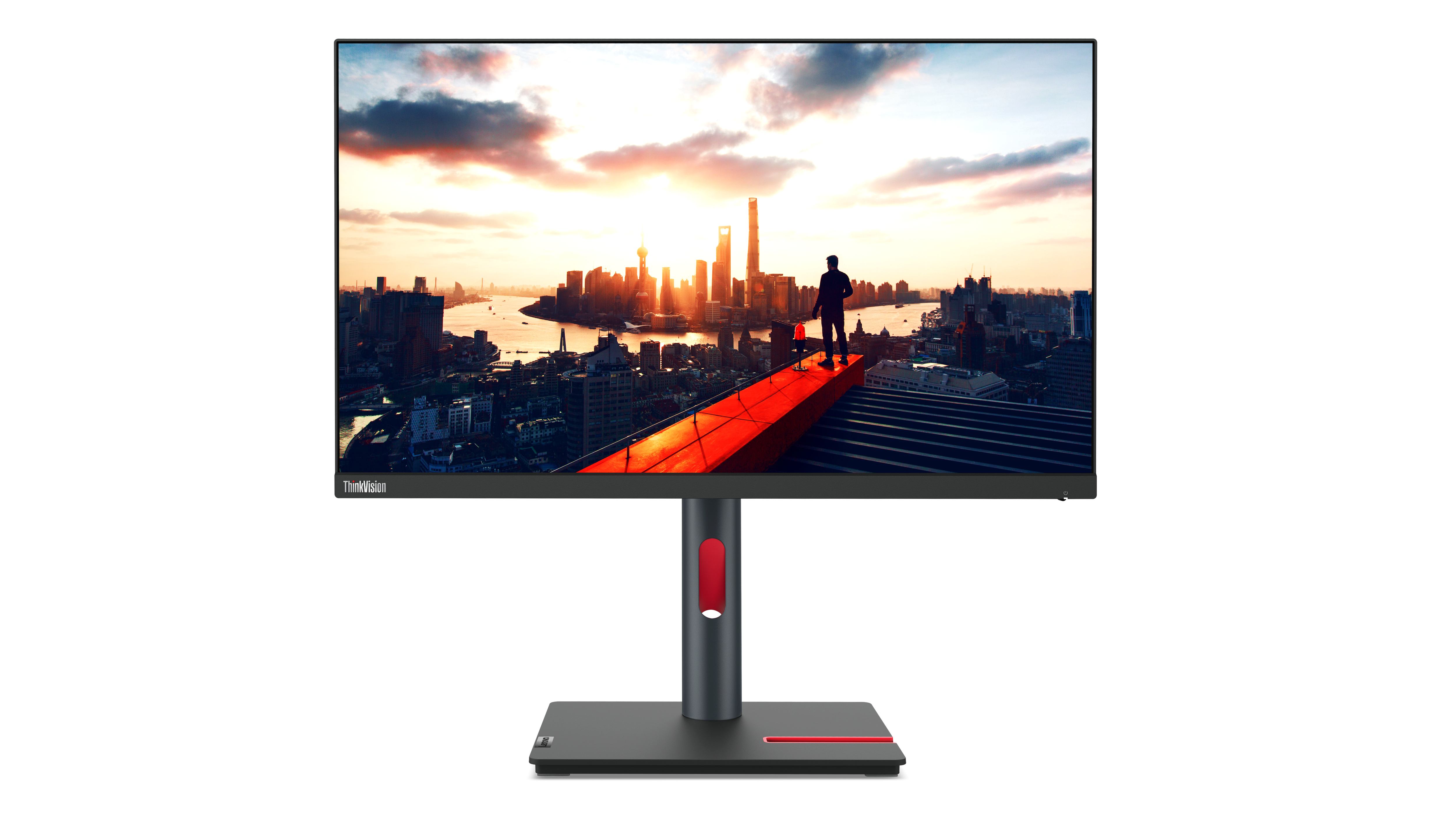
- Lenovo ThinkVision P24h-30 — 24-inch QHD, the most balanced format for text
- iiyama ProLite XB2797QSNPH-B1 27" — 27 inches with office equipment
- Dell Pro Plus P2425HE — built for the single-cable desk
- Acer Vero B7 B227Q 21.5" Full HD — compact, for shallow desks
- Samsung G61SD 27" QHD OLED — contrast and colour for image work
- iiyama G-MASTER GCB3484WQSU-B2 34" UltraWide — one screen instead of two
- Lenovo ThinkVision M16 — portable panel for the second setup
- iiyama ProLite T2252MSC-B2 — touch, for consultation and shared spaces